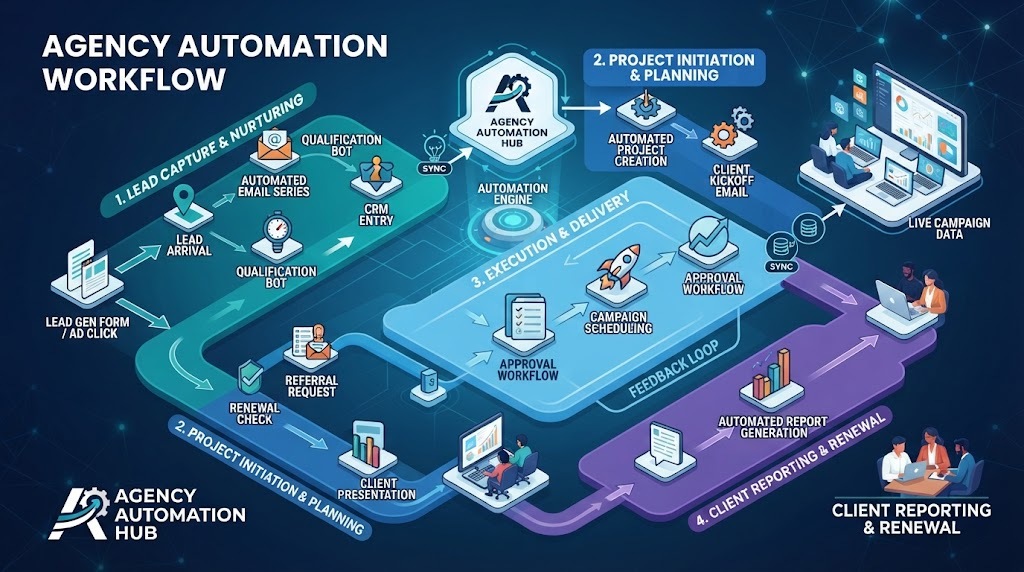
Implementing marketing automation for agencies takes about two to four weeks to set up completely, costs standard monthly software subscription fees, and needs care so you don't send wrong messages to client leads. You'll need full administrator access to your client's customer data and email domain before you start anything. Setting up workflows frees your staff from manual data entry, but the real effort lies in connecting your software properly.
|
Item |
How much |
Why it's needed |
A substitute |
|---|---|---|---|
|
Client lead list |
1 clean CSV file |
Populates the initial audience database |
none — don't swap this |
|
Agency automation platform |
1 central account |
Builds workflows and routes leads |
Standalone email tool |
|
Domain DNS access |
1 administrative login |
Authenticates sending records for deliverability |
Client IT manager direct help |
|
Web tracking snippet |
1 script per site |
Records visitor views and conversions |
Google Tag Manager container |
|
Workflow blueprint |
1 mapped diagram |
Prevents loop errors before launch |
Simple written step outline |
|
Email copy templates |
3 to 5 drafts |
Delivers scheduled nurturing follow-up messages |
Plain text email drafts |
Turn off any old active autoresponders inside the client's website forms so leads don't get double emails.
Clear outdated contact entries and duplicate email addresses from the client's current customer file.
Confirm administrative access to your agency's domain records and the client's website header scripts.
Map your exact triggers on paper first; skipping this preparation causes broken email loops that spam your contacts.
When your client needs custom database migrations with strict privacy laws, stop self-setup and hire a certified database developer.
Log into your agency platform and create a separate sub-account for your client's business profile. Check the sub-account dashboard displays the client's legal business name and correct primary timezone.
Add your agency sending domain inside the platform's email settings screen. Verify that the system generates your unique DKIM, SPF, and DMARC text records for setup.
Open your client's domain host records and paste the verification keys into the DNS table. Wait 15 to 45 minutes until the platform shows green checkmarks for all DNS fields.
Import your client's cleaned list of customer contacts using a standard CSV file upload. Ensure the mapped fields show first name, email, and phone number correctly before finishing.
Paste the platform tracking code into the header area of your client's website. Load the client homepage in an incognito window and check that the tracking script fires.
Build a new automated workflow trigger based on a website form submission event. Test the form by submitting test data to confirm the trigger registers inside seconds.
Add a delay step of exactly two days right after the initial welcome confirmation message. Confirm the delay timer displays on the visual workflow builder canvas correctly.
Add a follow-up email step offering a discovery call link to the active prospect. Send a preview test to your inbox to check the buttons route properly.
Publish the workflow by switching the master toggle from draft status to active mode. Check the status indicator turns green, showing the campaign is running for new visitors.
You'll know the setup works when test entries show up in your system within sixty seconds of a form submission. The dashboard contact log should show the visitor's email, the exact time they joined, and an active workflow tag. Check the outgoing email logs to see if the welcome message shows a status of delivered rather than bounced.
A trade-off here is speed versus delivery safety; throttling message delivery slows your campaign output, but it protects your client's domain reputation. If you see email open rates drop under 10% during early checks, your messages might be landing in spam folders. That's an immediate sign that your DNS authentication records need a second round of verification.
|
What happened |
Why |
What to do |
|---|---|---|
|
Emails hit spam folders |
Missing DKIM or SPF records |
Re-enter DNS keys in hosting |
|
Workflow stops midway |
Required contact fields were blank |
Set fallback text for fields |
|
Leads receive duplicate messages |
Multiple active triggers overlap |
Delete redundant older website forms |
|
High unsubscribe rates |
Wrong audience segment was targeted |
Narrow trigger conditions using tags |
|
Webhook fails to sync |
Outdated endpoint URL or key |
Generate fresh credentials and reconnect |
|
Form entries don't appear |
Tracking script placed incorrectly |
Move snippet before closing head |
Review your active automation workflows regularly to ensure all links and triggers run smoothly. Two main factors change this frequency: your client's lead volume and how often their sales offers change. High-volume ad campaigns pulling hundreds of daily signups require weekly data checks to catch delivery bottlenecks early.
If you run campaigns in the United States, you must also follow the FTC CAN-SPAM Act compliance guide, which requires honoring unsubscribe requests within 10 business days. Make sure your system processes opt-outs immediately so you don't breach these legal rules.
Yes. Professional agency accounts provide dedicated client sub-accounts, which keep customer databases, billing profiles, and workflow automations completely isolated from each other.
Server queue loads or unverified sending domains cause delivery delays. Checking your platform's server status page will show if queue processing times are currently running slower than usual.
About 14 to 30 days is the standard window for service inquiries. If a contact doesn't respond after 4 follow-ups, do remove them from the active funnel.
Yes, provided your billing software integrates directly with your payment processor. If order data mismatches occur, switch your settings to require manual staff review before final dispatch.
The incoming lead data drops, leaving a blank entry in your sales queue. Check the platform error log immediately to identify the broken field, fix it, and resend the payload.
No. The technical setup steps remain identical whether you import 50 contacts or 50,000, though larger lists require slower warm-up periods to protect your domain reputation.